# Command Line Fun
### Environment Variables
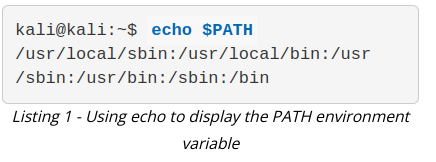
echo $PATH
[](https://wiki.togogo.ch/uploads/images/gallery/2022-08/cJZimage.png)
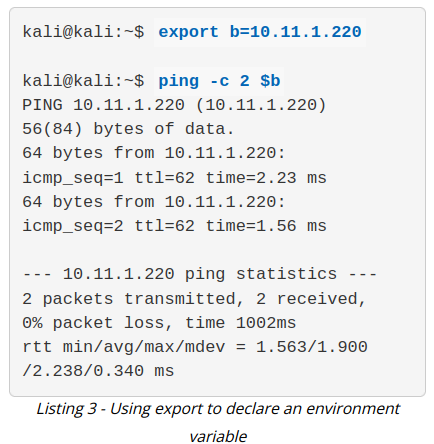
export b=10.11.1.220
ping -c 2 $b
[](https://wiki.togogo.ch/uploads/images/gallery/2022-08/x68image.png)
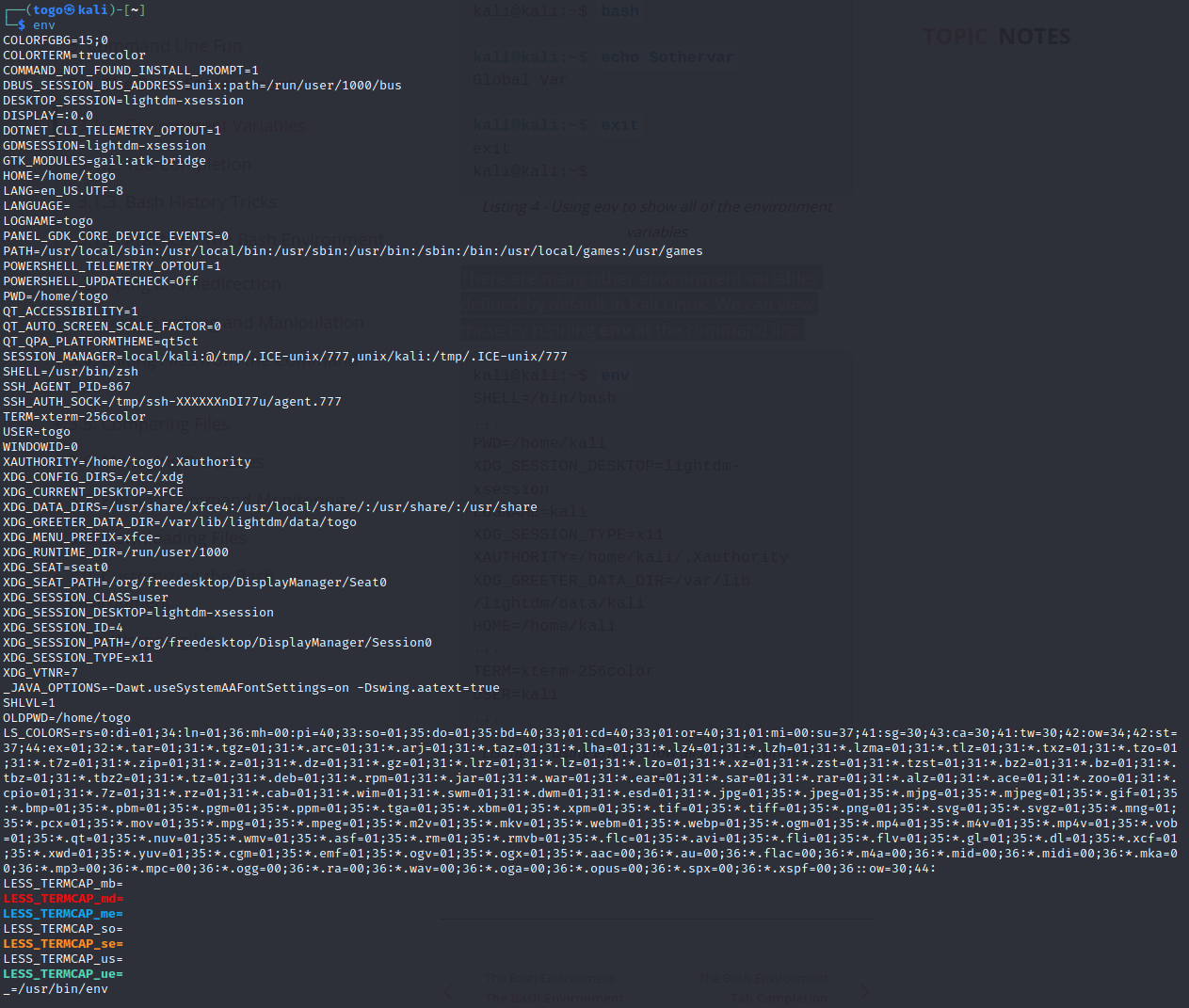
There are many other environment variables defined by default in Kali Linux. We can view these by running env at the command line:
[](https://wiki.togogo.ch/uploads/images/gallery/2022-08/HZWimage.png)
### Bash History
While working on a penetration test, it's important to keep a record of commands that have been entered into the shell. Fortunately, Bash maintains a history of commands that have been entered, which can be displayed with the history command.
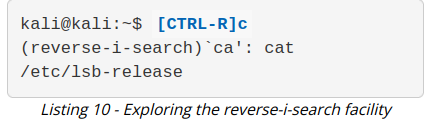
Holding down C and pressing r will invoke the *reverse-i-search* facility. Type a letter, for example, c, and you will get a match for the most recent command in your history that contains the letter "c". Keep typing to narrow down your match and when you find the desired command, press I to execute it.
[](https://wiki.togogo.ch/uploads/images/gallery/2022-08/OuKimage.png)