# Commands
#### man
[](https://wiki.togogo.ch/uploads/images/gallery/2022-08/image.png)
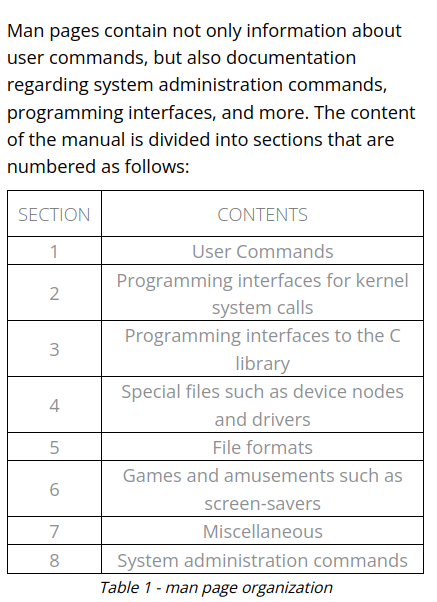
However, if we use the -k option with man, we can perform a keyword search as shown below:
man -k passwd
We can further narrow the search with the help of a regular expression:
man -k '^passwd$'
#### apropos
With the *apropos* command, we can search the list of man page descriptions for a possible match based on a keyword. Although this is a bit crude, it's often helpful for finding a particular command based on the description. Let's take a look at an example. Suppose that we want to partition a hard drive but can't remember the name of the command. We can figure this out with an apropos search for "partition".
apropos partition
#### which
The which command searches through the directories that are defined in the *$PATH* environment variable for a given file name. This variable contains a listing of directories that Kali searches when a command is issued without its path. If a match is found, which returns the full path to the file as shown below:
[](https://wiki.togogo.ch/uploads/images/gallery/2022-08/nw4image.png)
#### locate
The *locate* command is the quickest way to find the locations of files and directories in Kali. In order to provide a much shorter search time, locate searches a built-in database named locate.db rather than the entire hard disk itself. This database is automatically updated on a regular basis by the *cron* scheduler. To manually update the locate.db database, you can use the updatedb command.
#### find
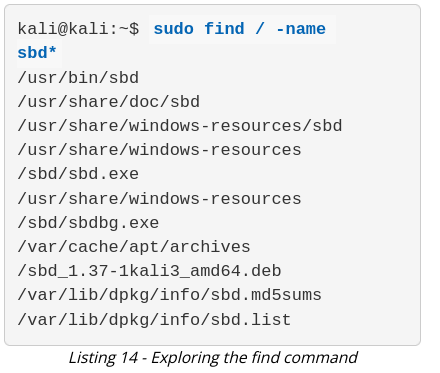
The *find* command is the most complex and flexible search tool among the three. Mastering its syntax can sometimes be tricky, but its capabilities go beyond a normal file search. The most basic usage of the find command is shown in Listing 14, where we perform a recursive search starting from the root file system directory and look for any file that starts with the letters "sbd".
[](https://wiki.togogo.ch/uploads/images/gallery/2022-08/mAtimage.png)