Servarr Streaming
https://www.youtube.com/watch?v=LD8-Qr3B2-o
Overview
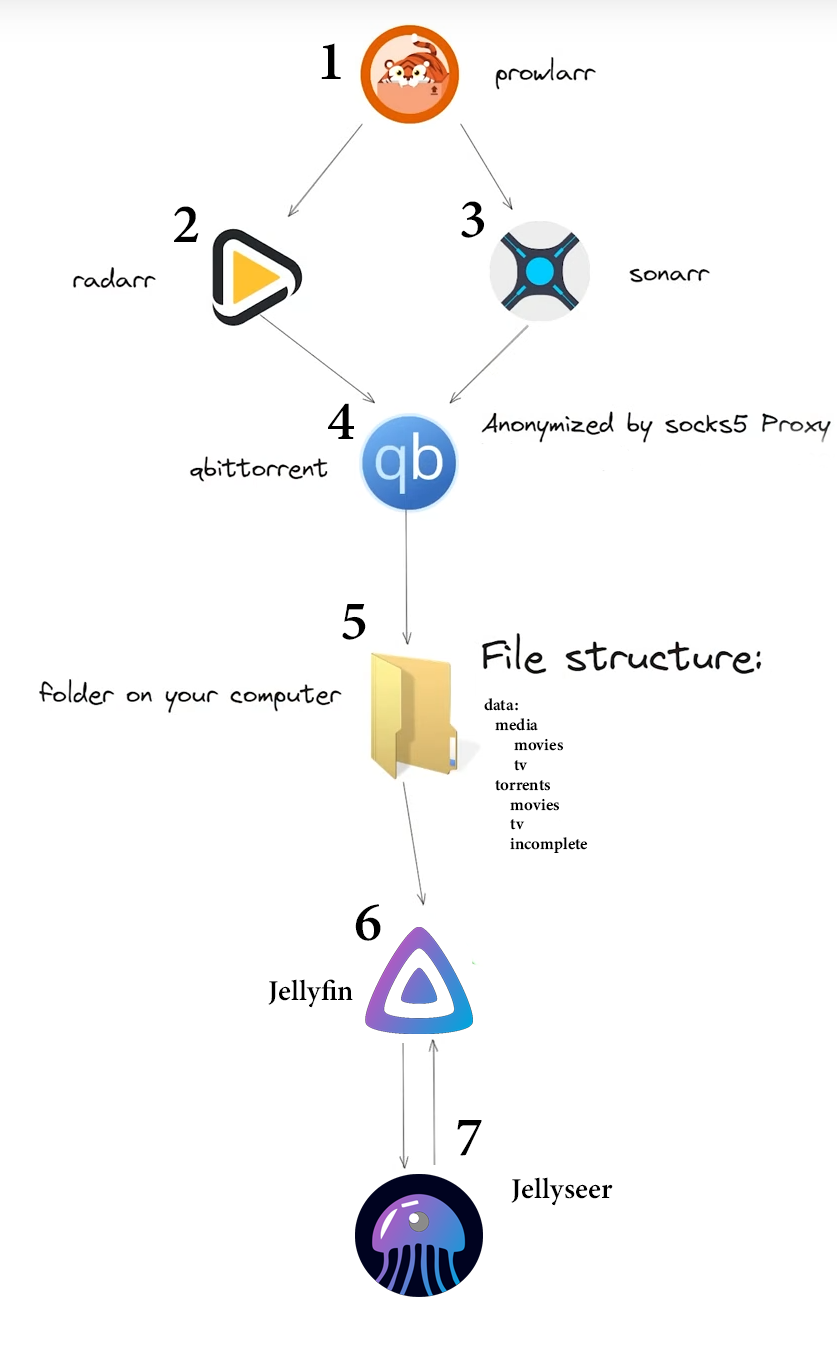
Looking from top down:
- Prowlarr:
Is basically the indexer which is crawling in the internet and searching for the requested torrent files. It's the management of both Torrent Trackers and Usenet Indexers - Radarr:
Is a movie collection manager for Usenet and BitTorrent users. It can monitor multiple RSS feeds for new movies and will interface with clients and indexers to grab, sort, and rename them.
Short: it gets the metadata for the Movies - Sonarr:
Is a PVR for Usenet and BitTorrent users. It can monitor multiple RSS feeds for new episodes of your favorite shows and will grab, sort and rename them.
Short: it gets the metadata for the Servies / Shows - qBittorrent:
Is the application which is downloading the torrent. It's good if you use a VPN or proxy socks to not expose your public IP address. - Filesystem:
Enough space to download movies and series. It's recommended to use the provided folder structure. - Jellyfin:
A server media player which shows the downloaded movies in a nice view. - Jellyseer:
application for managing requests for your media library. It is a fork of Overseerr that has been specifically built to support Jellyfin. Short: it allows you to request new movies to get downloaded. Works together with jellyfin.
How it will work at the end:
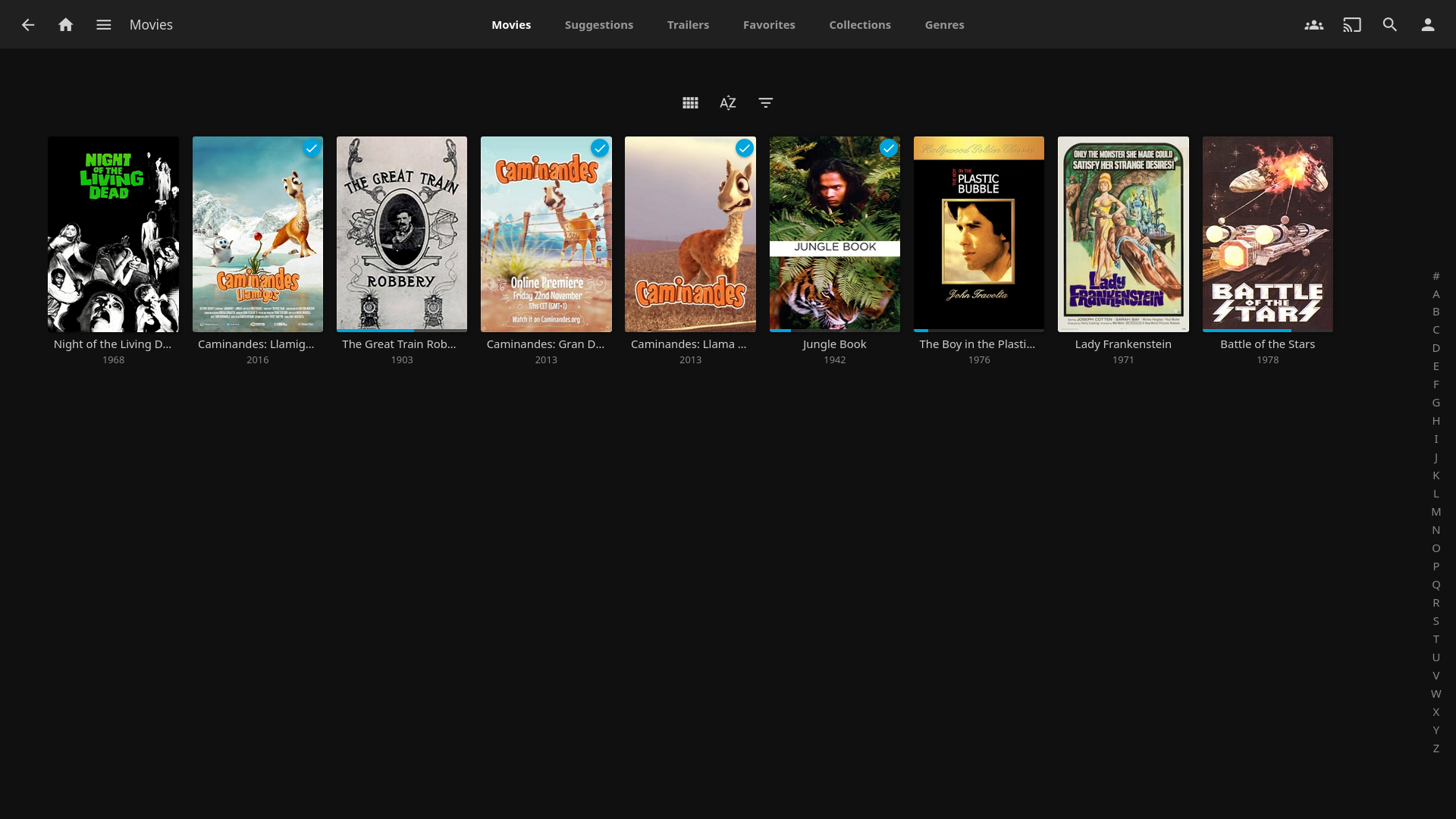
You can search any movie / series on jellyseer. Then you click Request and it will download you the file and jellyfin automatically shows it in your library where you can watch it.
In the background happens following: Prowlarr is providing the torrent for the file while qBittorrent is downloading them, sonarr/radarr are adding the metadata to it (movie name, release year which is getting the info from IMDB).
Jellyfin then will add the movie to the library.
Application Setup
Prowlarr, Radarr & Sonarr
Prowlarr
After installation and starting up, you open a browser and go to http://{your_ip_here}:9696
Adding Indexer
The first thing to set up in Prowlarr is indexers. You will add each indexer individually to Prowlarr.
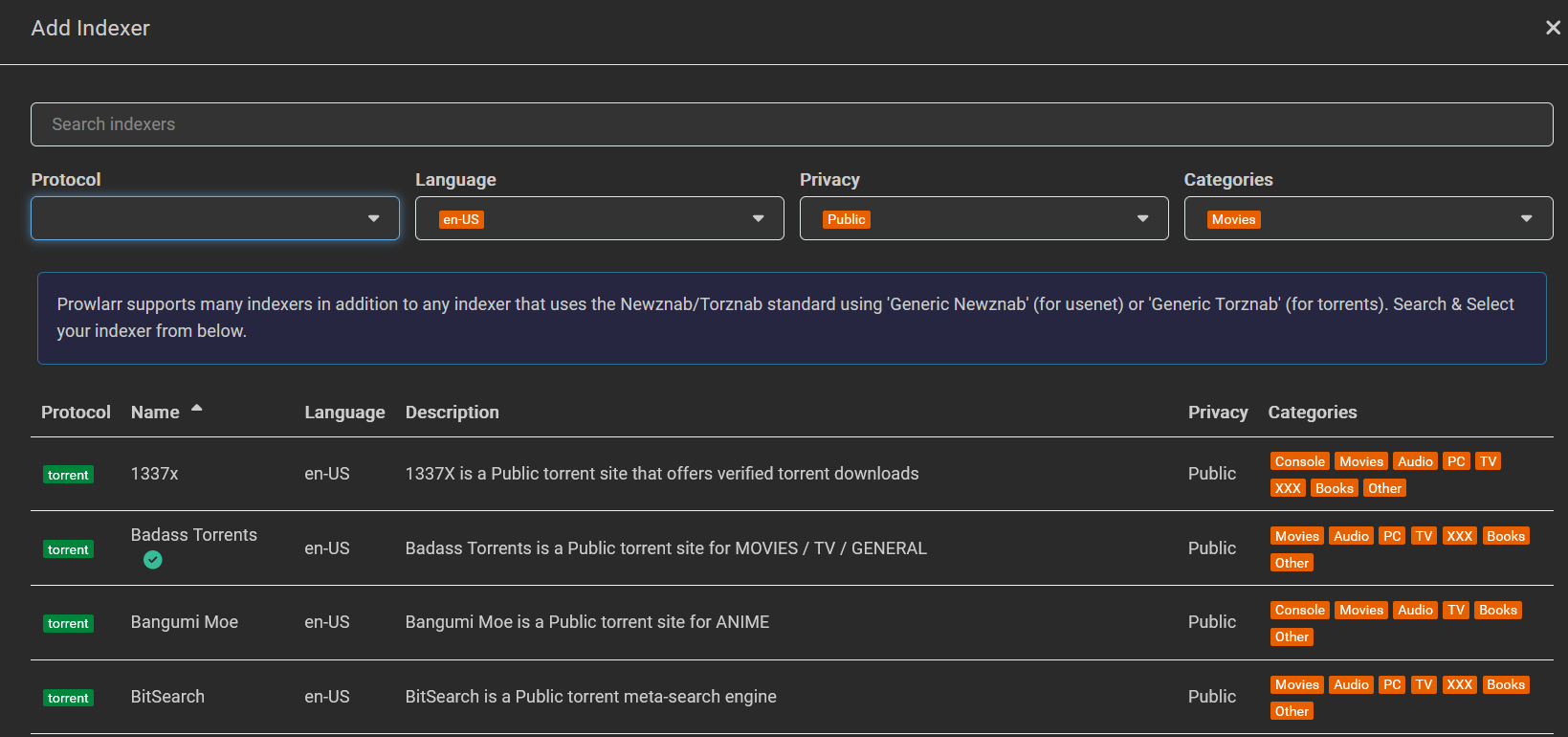
Click on "Add Indexer"
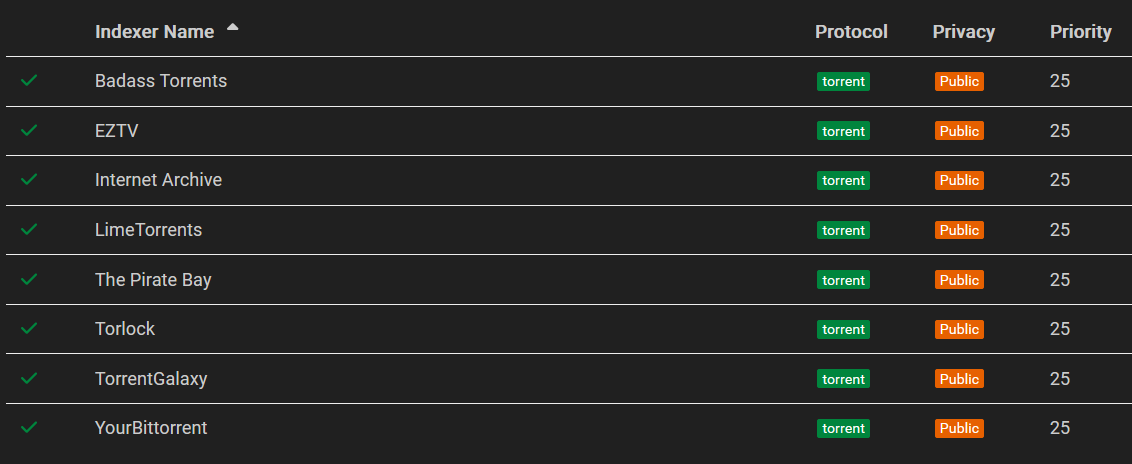
There you can filter for several indexers like pirate bay etc. It's important to take only them with Privacy "Public" for the private ones you need an invite.
Once you choose one, Test the connection.
If the connection is successful you can add the indexer to your list.
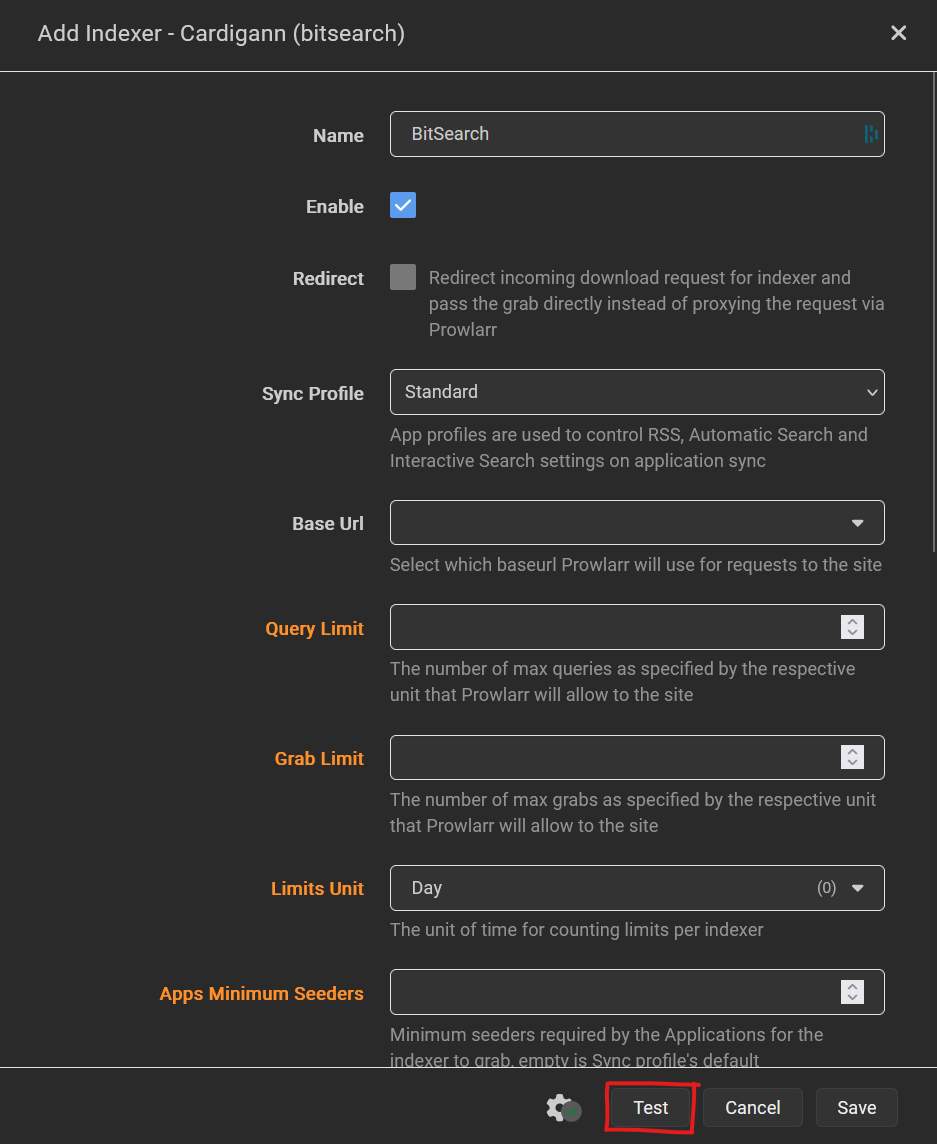
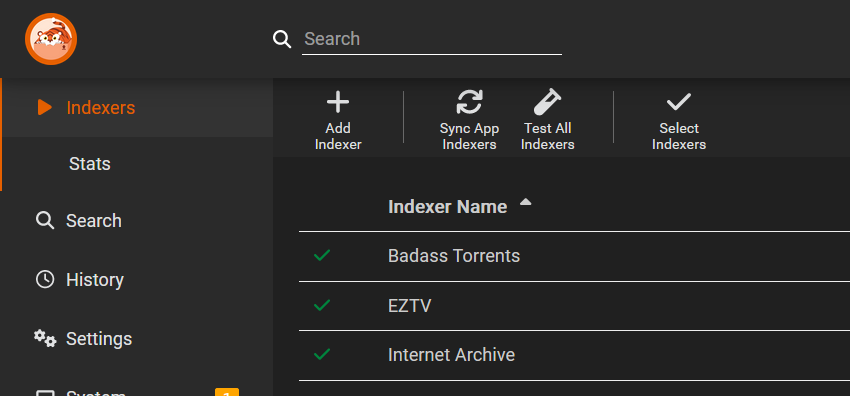
Here are some Indexers which I use:
Adding Radarr & Sonarr
After you've added your indexers, we then connect Prowlarr to your other apps.
Click on Settings => Apps, and then click the + to add a supported app
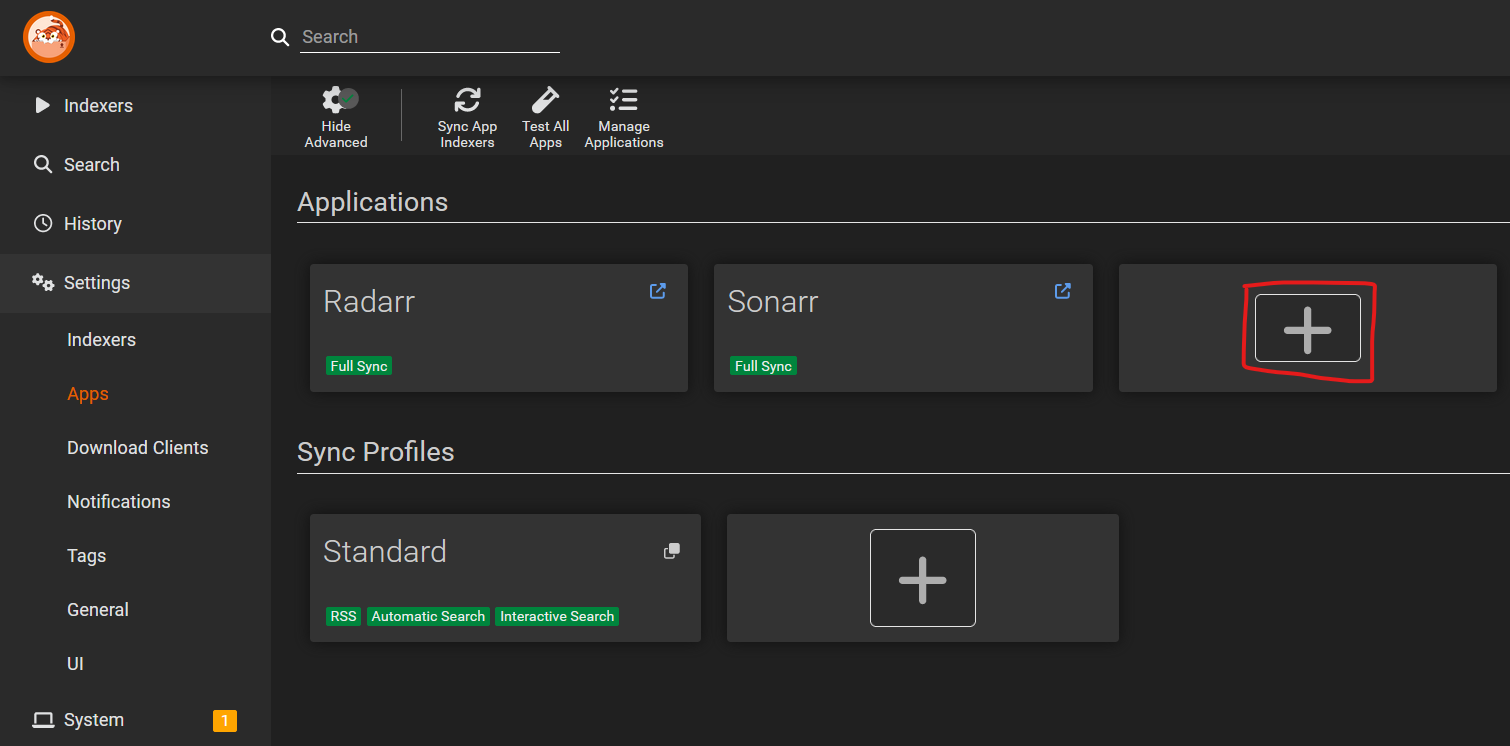
We need to add Radarr & Sonarr:
For each app please add following parameters:
- Radarr / Sonarr Server: http://123.456.789.111:7878 (on whatever port your app is running)
- API Key: In the "Settings -> General -> API Key" of each Radarr/Sonarr instance
- Test the connection. If it's green its all good :)
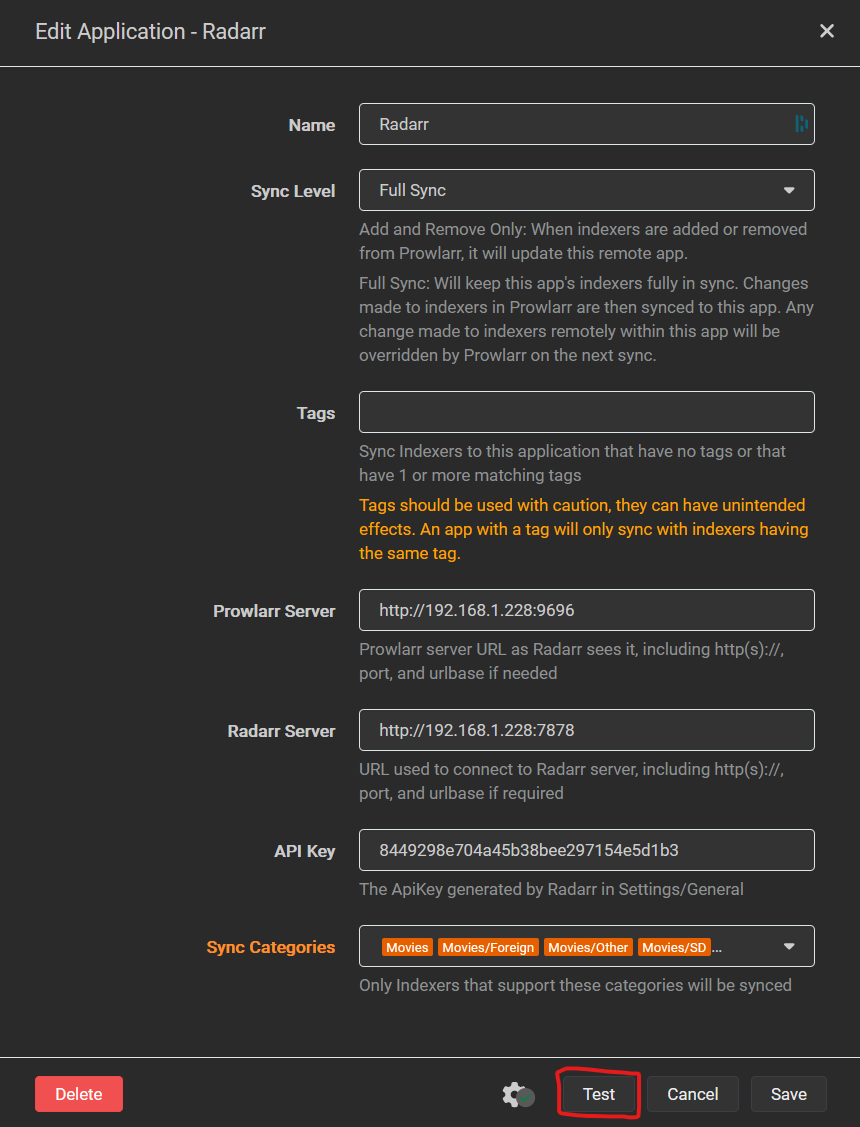
Once this is done we mainly finished Prowlarr.
Radarr
After installation and starting up, you open a browser and go to http://{your_ip_here}:7878
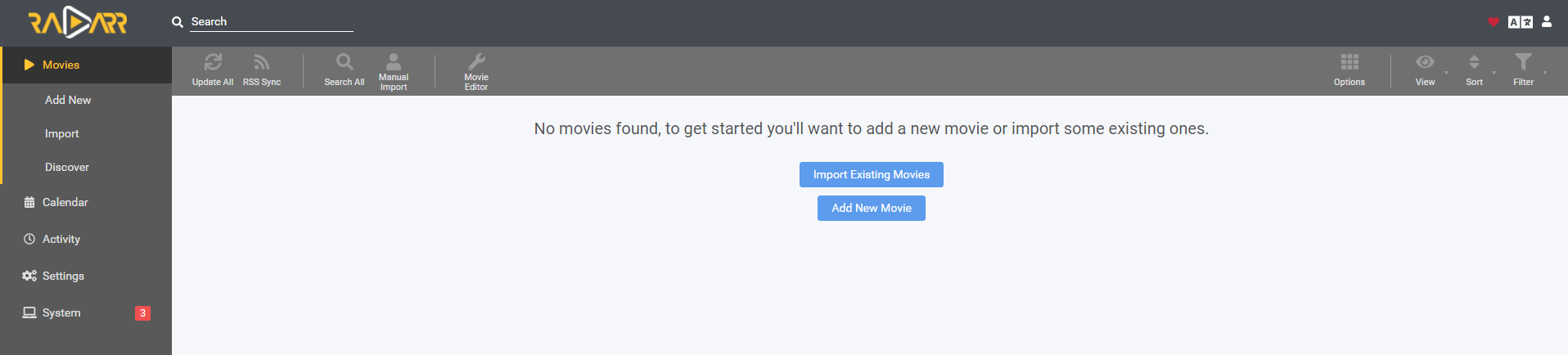
Media Management
First we change some setting in the media management. Settings -> Media Management
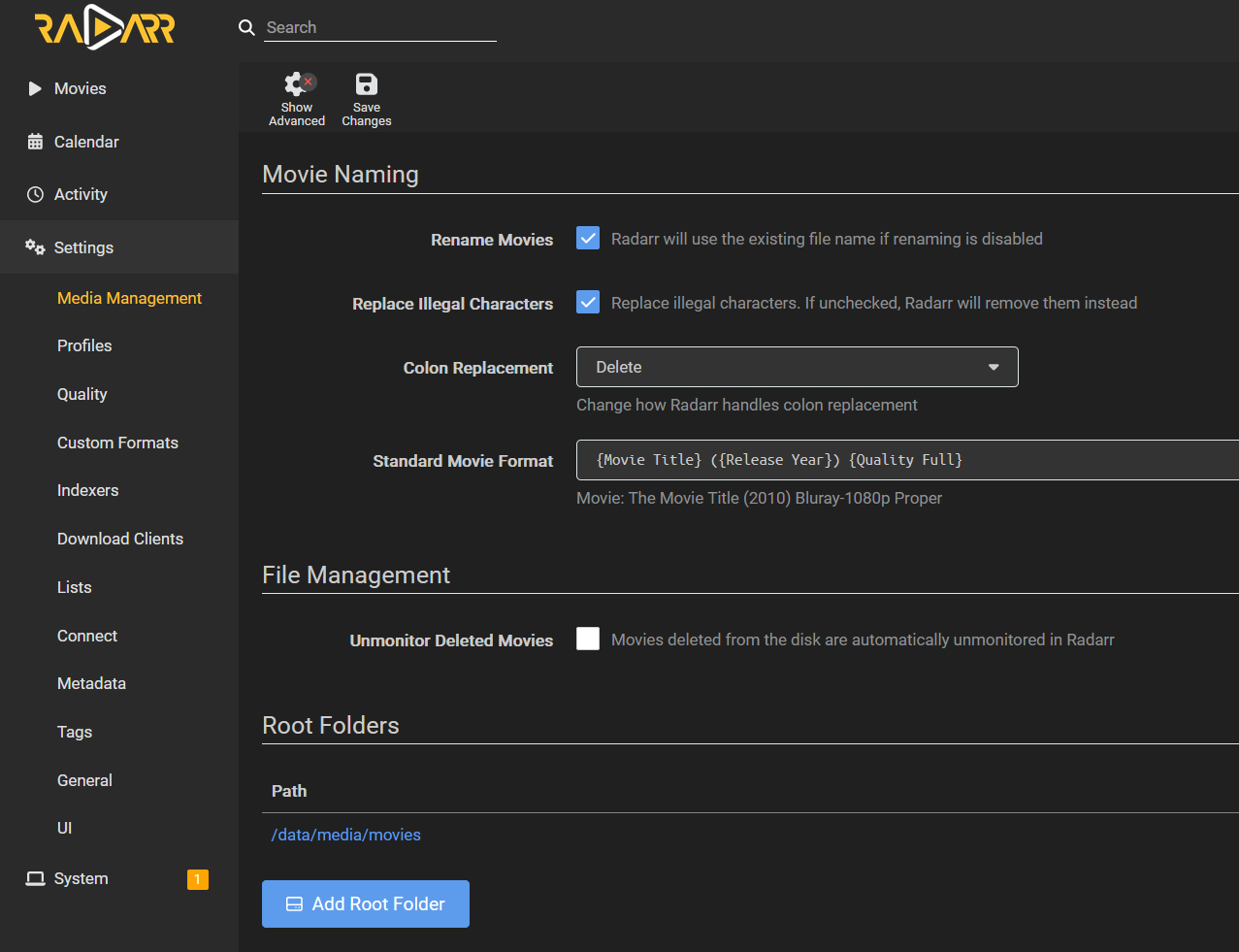
Make sure you ticked "Rename Movies" & "Replace Illegal Characters". Below you can define how the Movie Title format should look like.
Add as well the path where all movies should be stored. This will be the same path as Jellyfin uses for the media.
Download Clients
Next we define the download client. Settings -> Download Clients
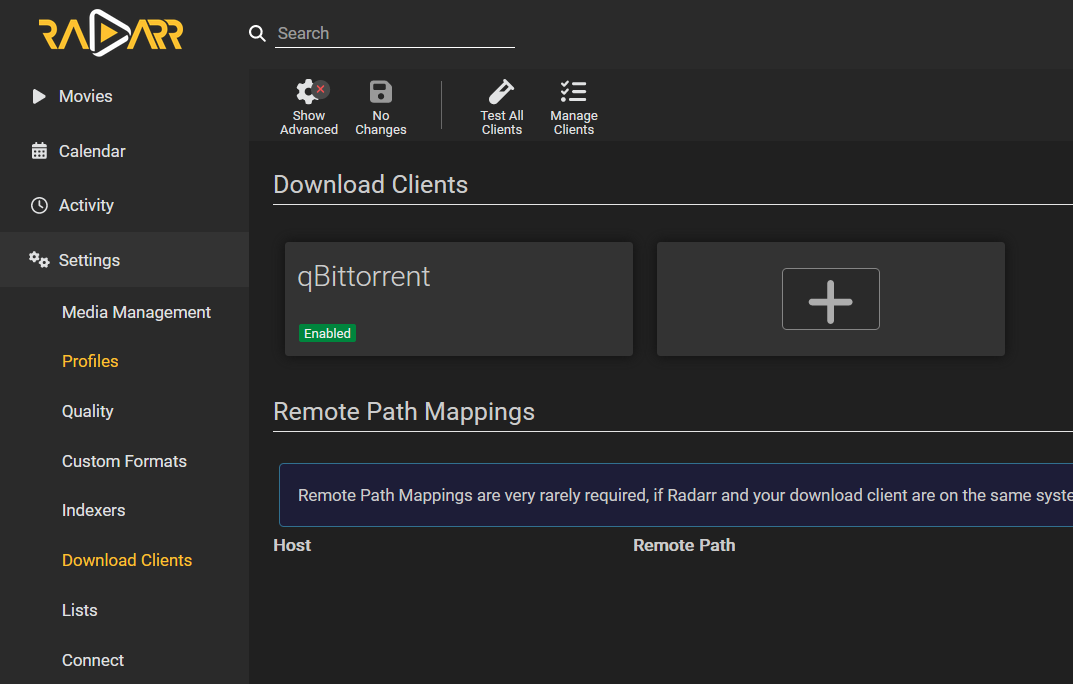
Click on the + and to add a new qBittorrent client.