
Prowlarr, Radarr & Sonarr
Prowlarr
After installation and starting up, you open a browser and go to http://{your_ip_here}:9696
Adding Indexer
The first thing to set up in Prowlarr is indexers. You will add each indexer individually to Prowlarr.
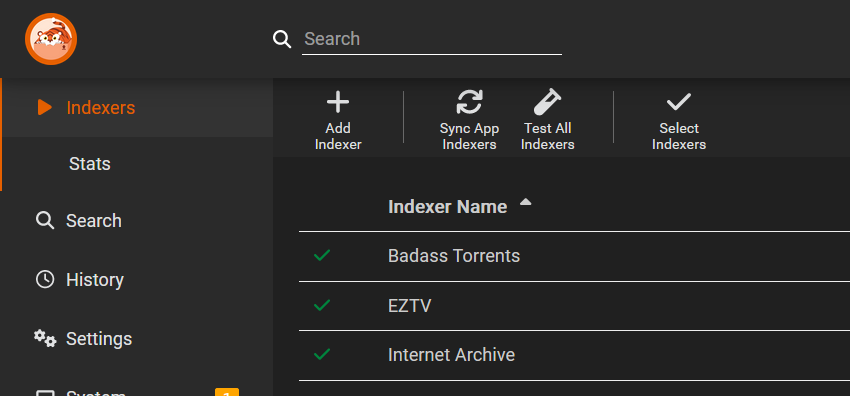
Click on "Add Indexer"
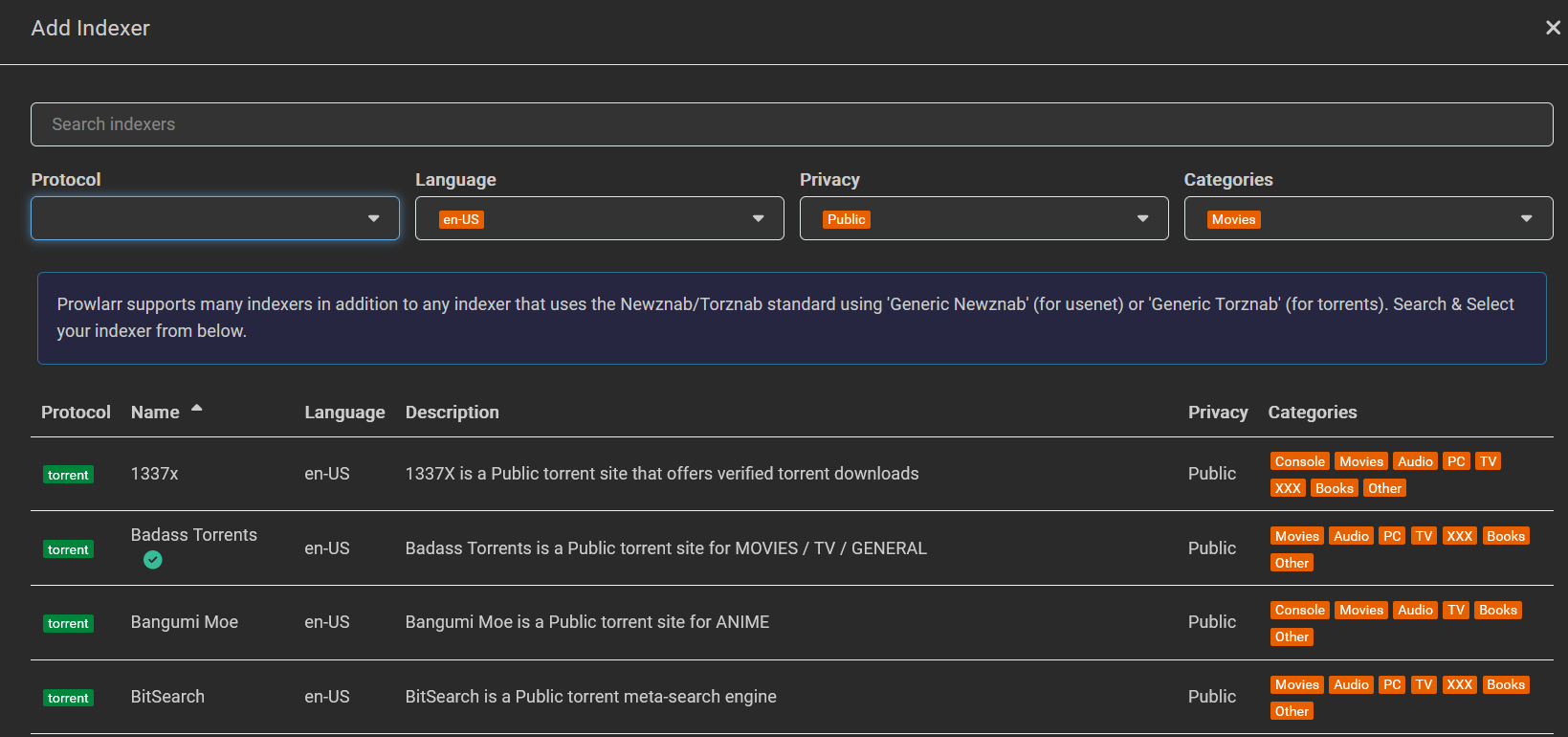
There you can filter for several indexers like pirate bay etc. It's important to take only them with Privacy "Public" for the private ones you need an invite.
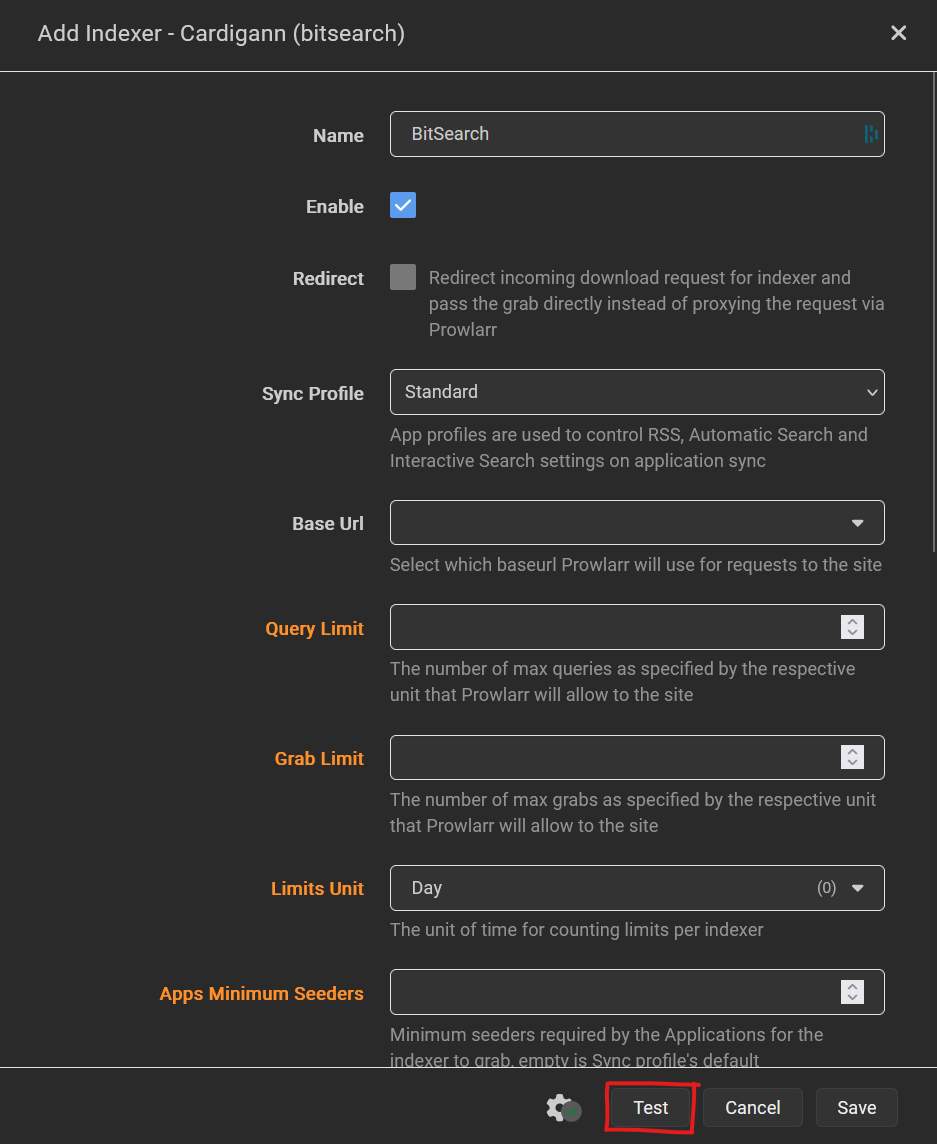
Once you choose one, Test the connection.
If the connection is successful you can add the indexer to your list.
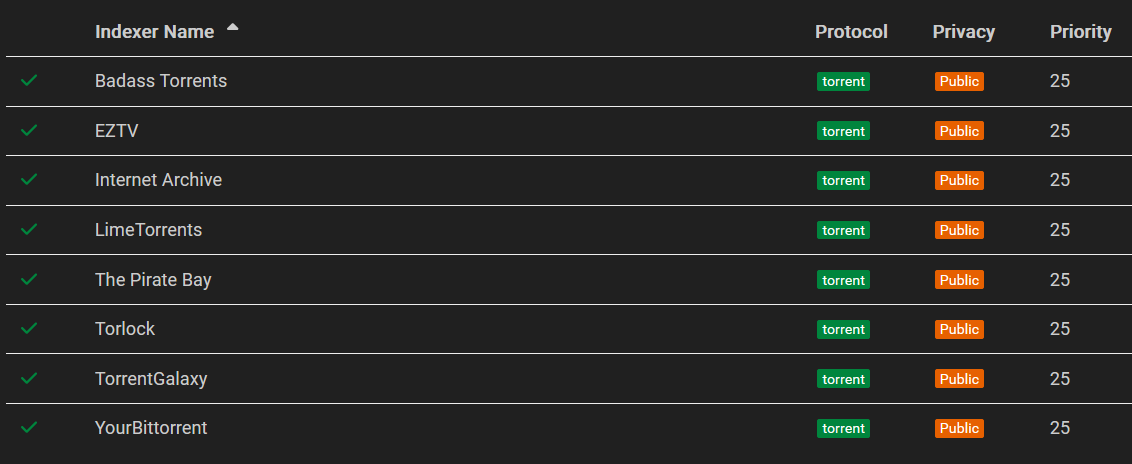
Here are some Indexers which I use:
Adding Radarr & Sonarr
After you've added your indexers, we then connect Prowlarr to your other apps.
Click on Settings => Apps, and then click the + to add a supported app
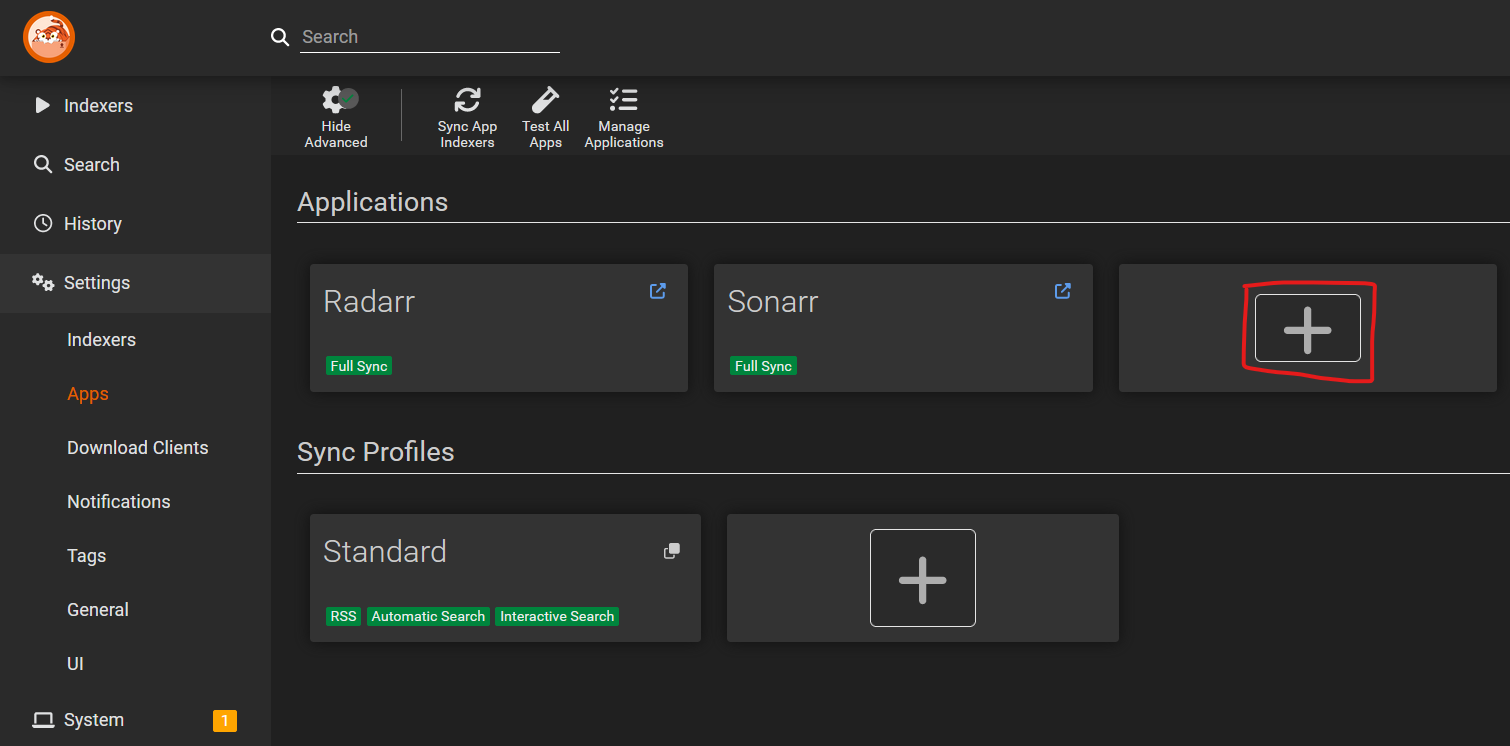
We need to add Radarr & Sonarr:
For each app please add following parameters:
- Radarr / Sonarr Server: http://123.456.789.111:7878 (on whatever port your app is running)
- API Key: In the "Settings -> General -> API Key" of each Radarr/Sonarr instance
- Test the connection. If it's green its all good :)
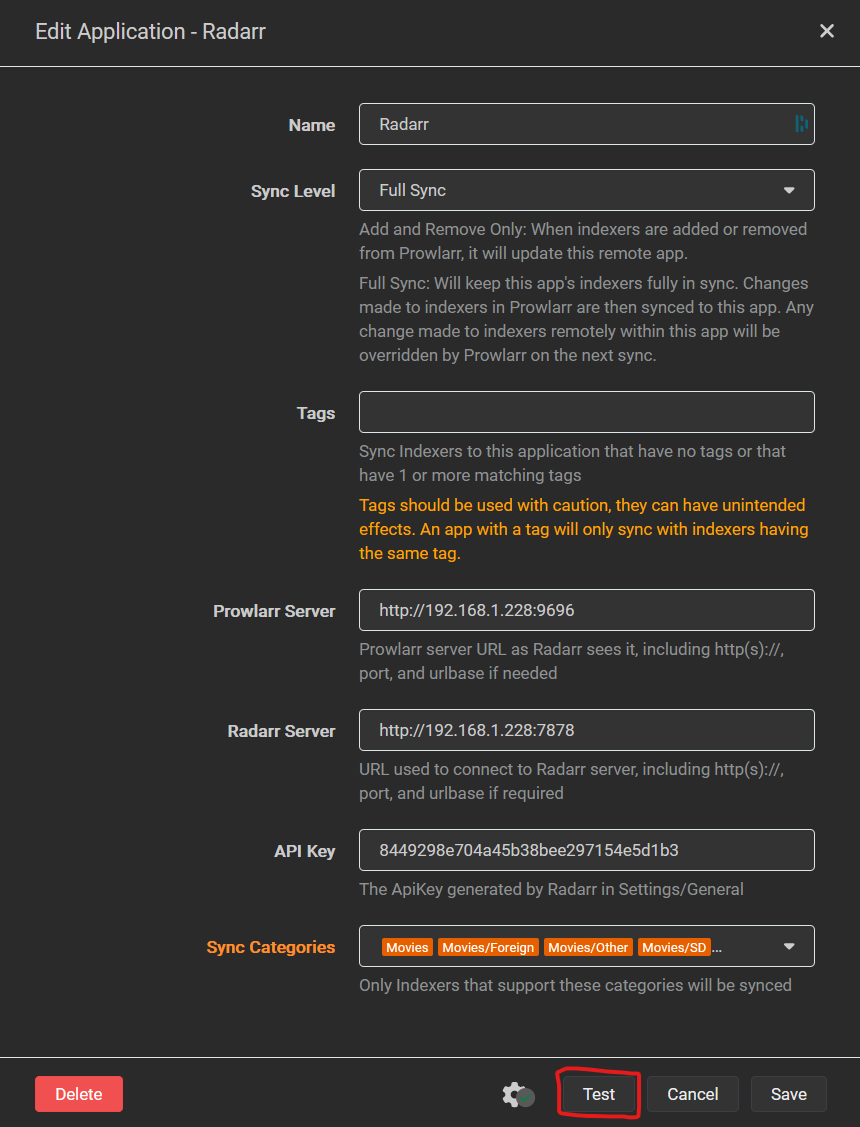
Once this is done we mainly finished Prowlarr.
Radarr
After installation and starting up, you open a browser and go to http://{your_ip_here}:7878
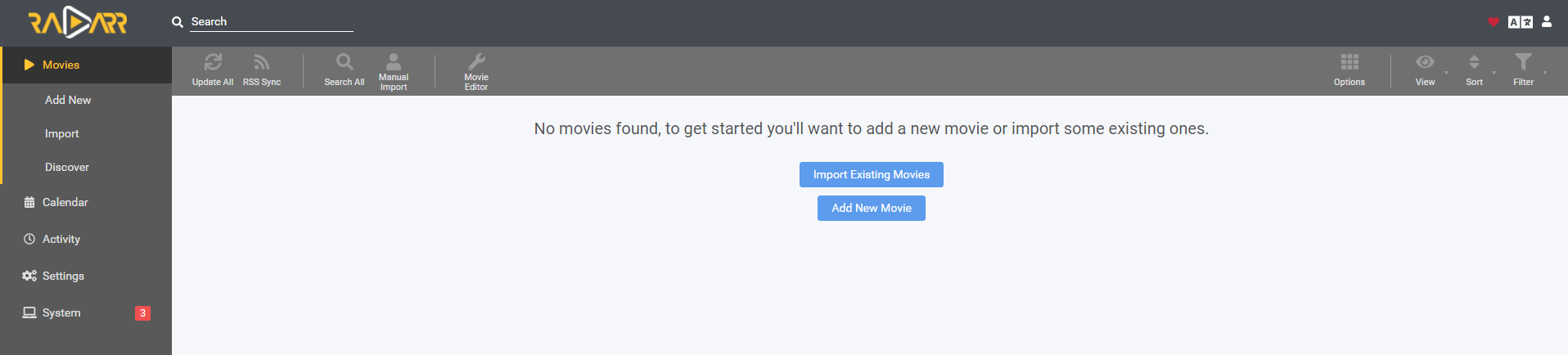
Media Management
First we change some setting in the media management. Settings -> Media Management
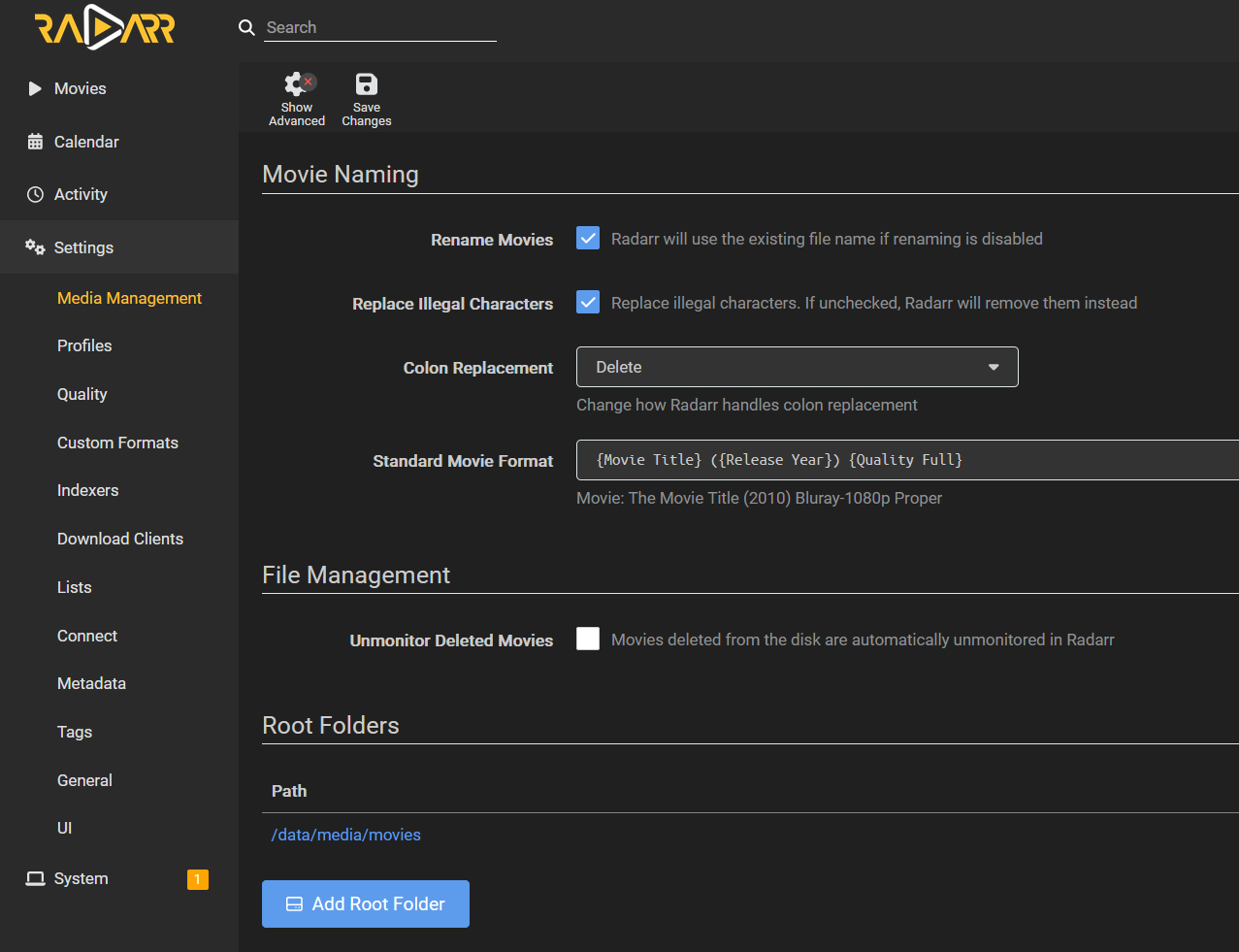
Make sure you ticked "Rename Movies" & "Replace Illegal Characters". Below you can define how the Movie Title format should look like.
Add as well the path where all movies should be stored. This will be the same path as Jellyfin uses for the media.
Download Clients
Next we define the download client. Settings -> Download Clients
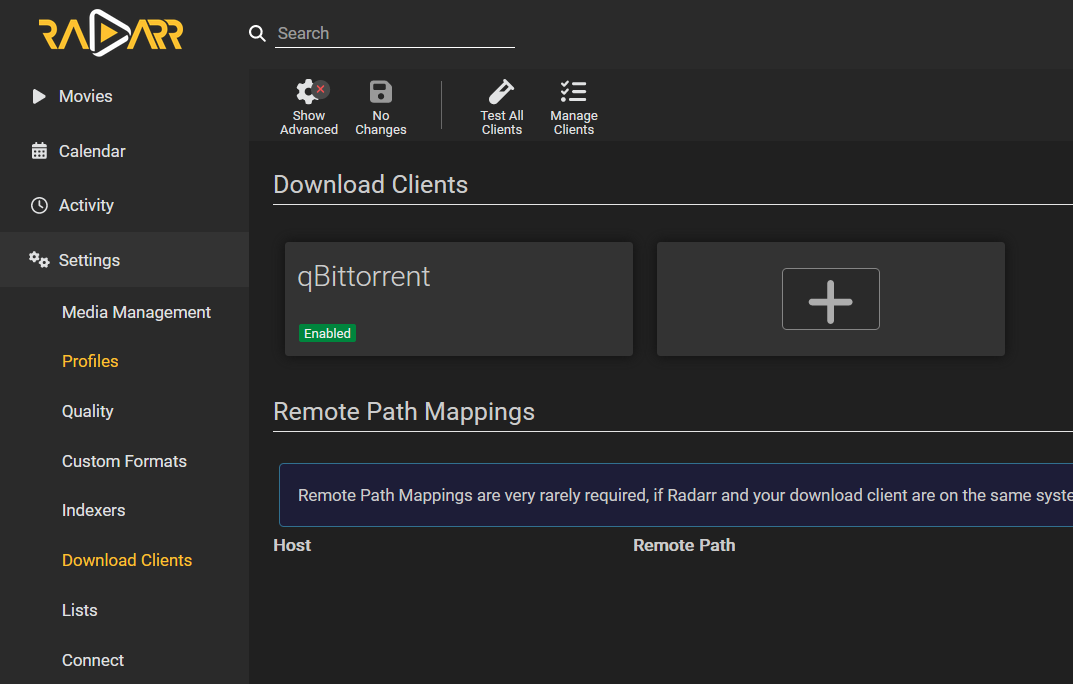
Click on the + and to add a new qBittorrent client.
No Comments