
Configure Firewall & Splunk
Open Firewall
When we try to access the login via internal network we won't be able to establish a connection.

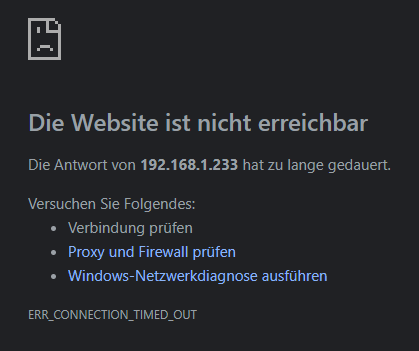
The problem is that our machine is refusing connections from outside via port 8000. We need to open the port on the firewall.
The guide how to change firewall rules can be found here: https://www.digitalocean.com/community/tutorials/how-to-set-up-a-firewall-using-firewalld-on-centos-8-de
With a simple oneliner we have opened the port:
sudo firewall-cmd --zone=public --permanent --add-port=8000/tcp
That's it now we need to reboot once and the port is accessible via the network.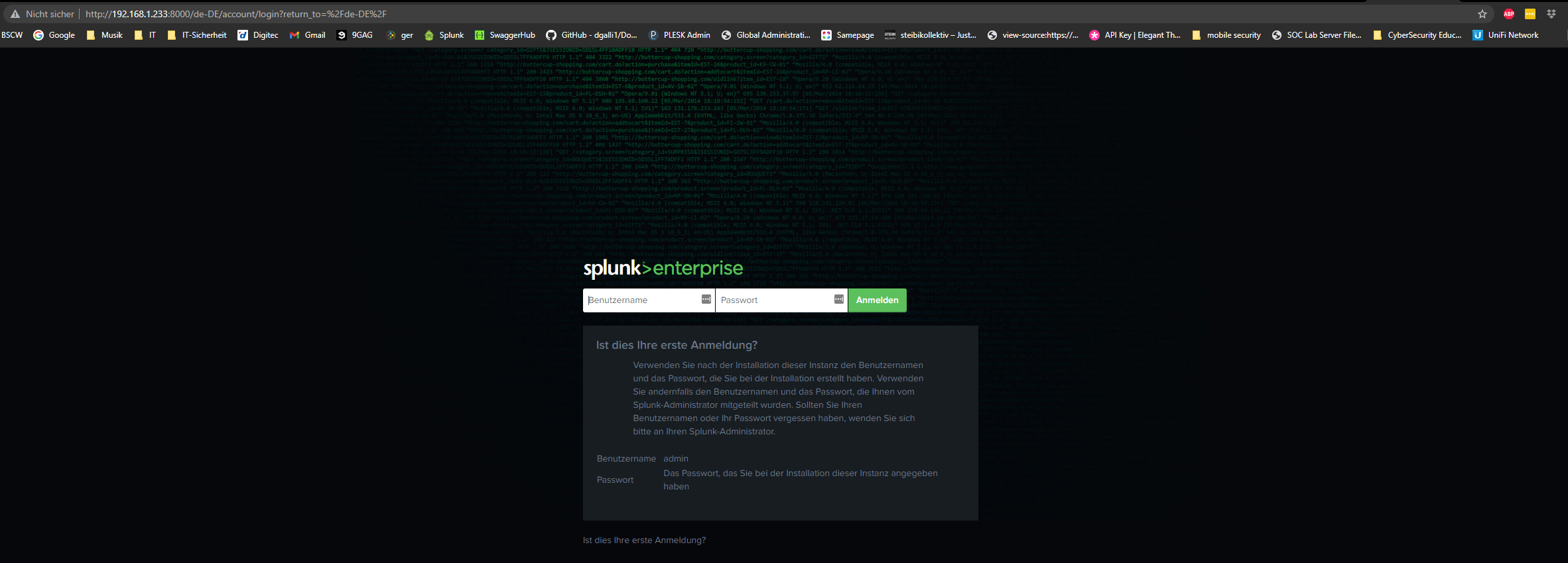
Configure Splunk
Now as Splunk is running we can log in with the defined credentials.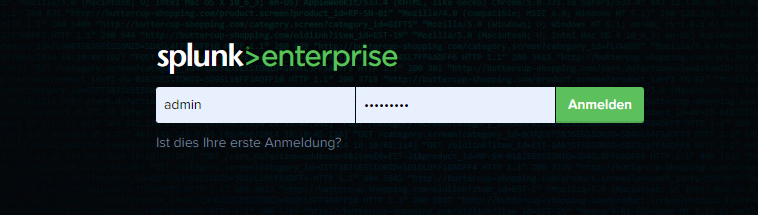
Next step we set the correct timezone and enable HTTPS.
For that we go into the settings below the Administrator Tab.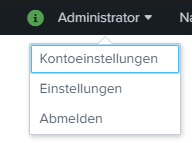
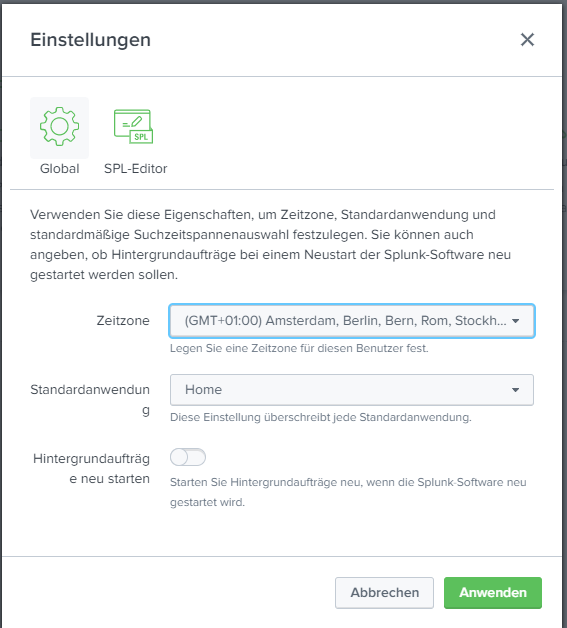
Easy!
Next thing to do is enable HTTPS.
To access the server setting we access the Setting tab and go to Server-Settings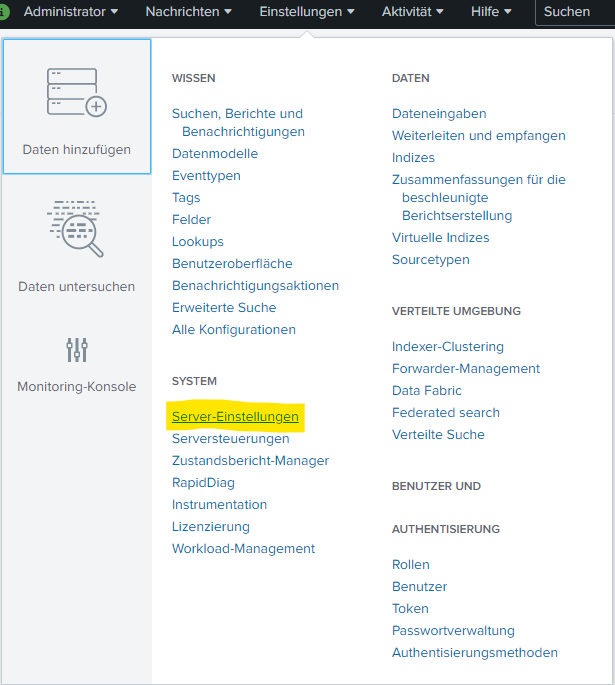
Then we access the general settings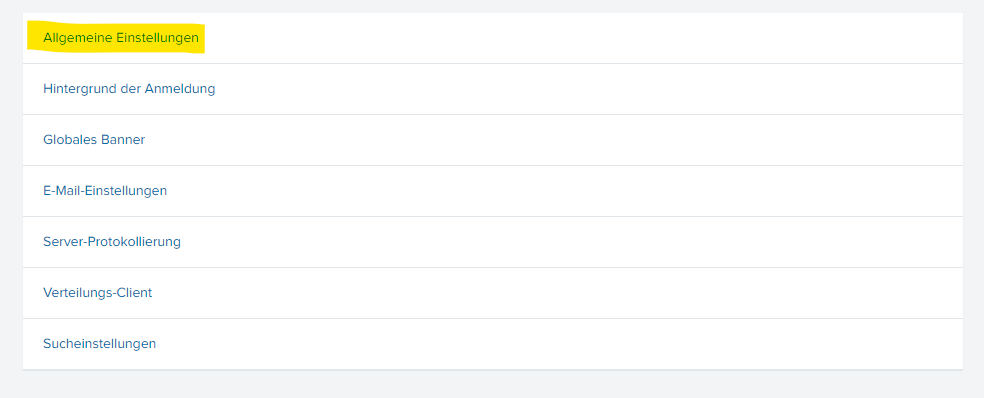
In the general setting we choose "enable HTTPS in Splunk Web":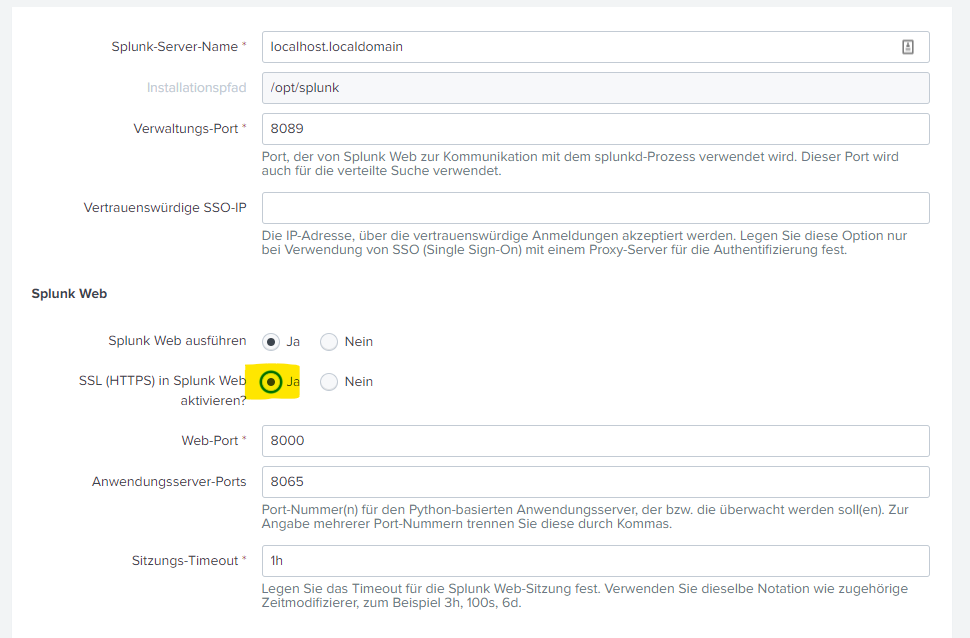
After the HTTPS box is checked we need to perform a restart of the Splunk service. To initiate a restart we go to the "Settings" tab and choose Server-Control: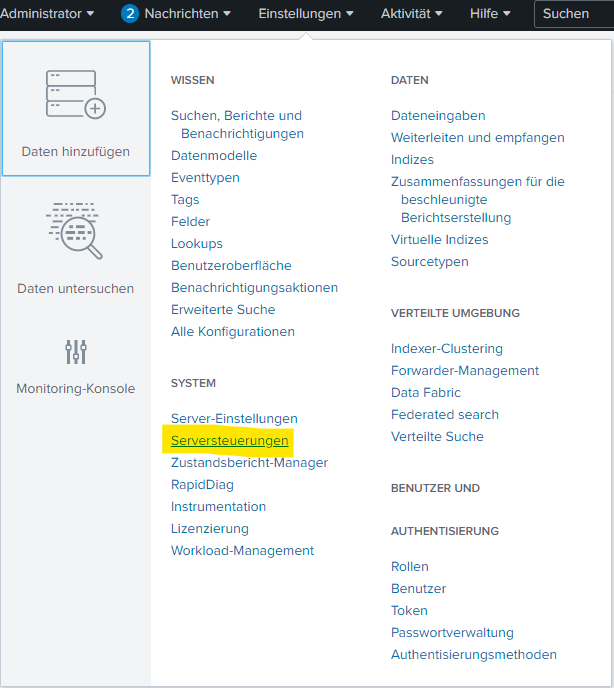
In here we are able to restart the service:
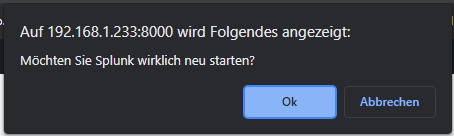
You'll get asked if you really want to restart. Press OK

Click on the URL and you'll get redirected to the HTTPS login

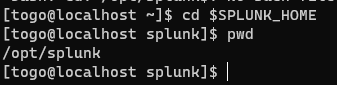
Now we are going back to the shell and set the $SPLUNK_HOME environment variable.
export SPLUNK_HOME=/opt/splunk
Install Apps and Addons
Download following Apps:
Lookup File Editor app (Note: Tested with version 3.0.3)
Parallel Coordinates Custom Visualization (Note: Tested with version 1.2.0)
Simple Timeseries Custom Visualization (Note: Tested with version 1.0)
Timeline Custom Visualization (Note: Tested with version 1.2.0)

All apps are zipped in tgz. We can add them into Splunk as following:
On the Splunk landing page there are the current apps listed. Top right corner is a little "Settings-Wheel"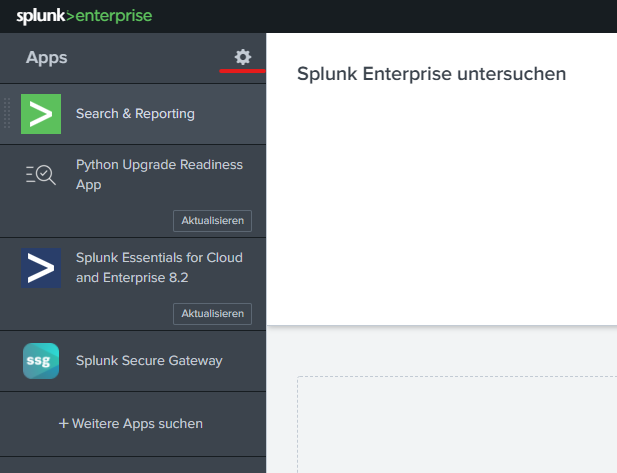
We are getting redirected to the main Apps and Addons page. Top right corner we are able to install apps of a file: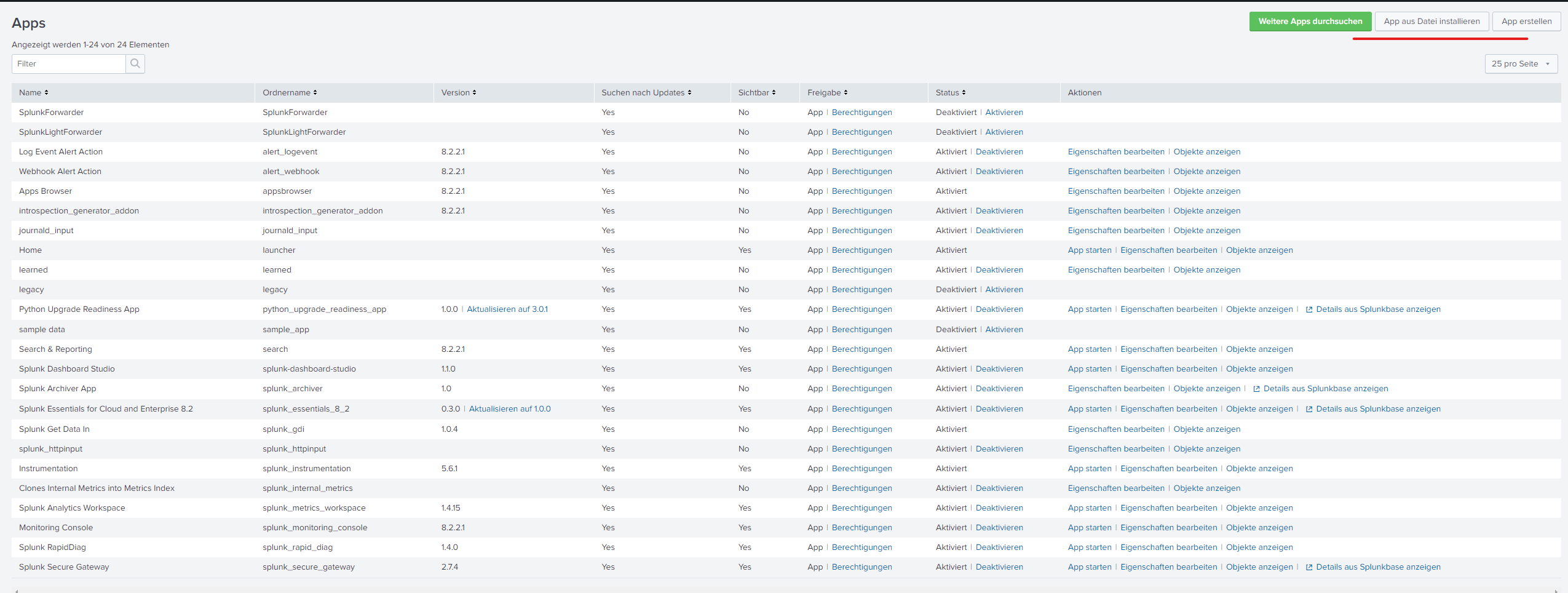
To install an app we click on the button "install app out of file":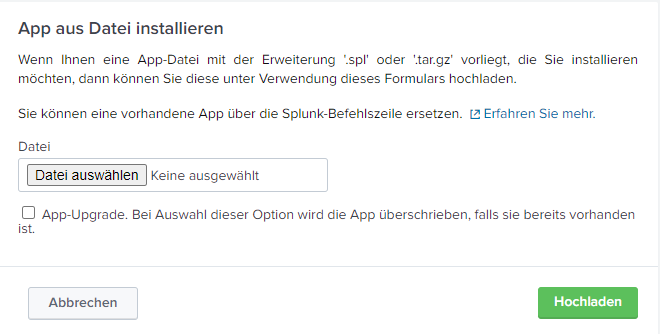
Install all apps and restart the service.
After the restart we see on the landing page the newly added apps.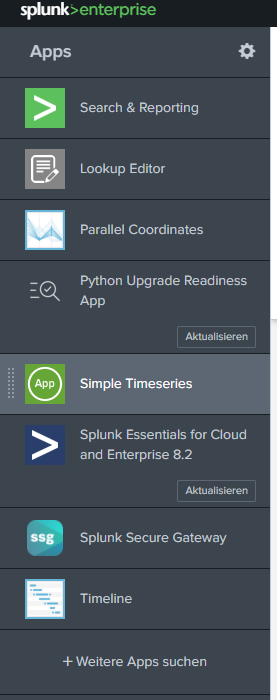
Install CTF Scoreboard
Now we install the CTF Scoreboard. Enter the directory of the apps and clone the repository:
cd $SPLUNK_HOME/etc/apps
sudo git clone https://github.com/splunk/SA-ctf_scoreboard
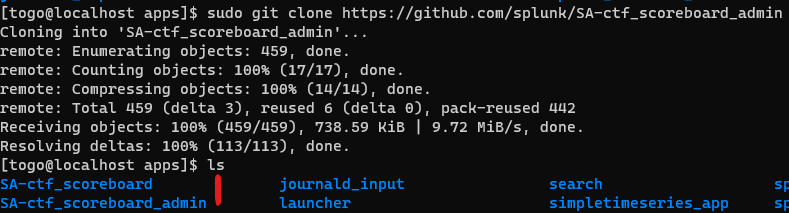
sudo git clone https://github.com/splunk/SA-ctf_scoreboard_admin
After you installed the Scoreboards we need to restart the service
sudo $SPLUNK_HOME/bin/splunk restart
Now we should see the Apps on the landing page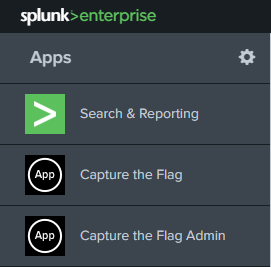
Next we create the log folder for the scoreboard:
sudo mkdir $SPLUNK_HOME/var/log/scoreboard
Create CTF Answers service account cabanaboy
By convention this user is called cabanaboy because that’s what any rational person would pick while sitting next to Ryan Kovar
Pick a good strong password, and record it. You will need it again soon. The good news is that it does not need to be easily memorized by a human.
Assign the cabanaboy user to role ctf_answers_service
This can all be accomplished from the command line as follows:
sudo $SPLUNK_HOME/bin/splunk add user cabanaboy -password <password> -role ctf_answers_service -auth admin:<admin_password>
Configure Scoreboard controller
Access the log directory
cd $SPLUNK_HOME/etc/apps/SA-ctf_scoreboard/appserver/controllers
cp scoreboard_controller.config.example scoreboard_controller.config
Edit scoreboard_controller.config to reflect the following:
- The CTF Answers service account username (probably cabanaboy)
- The CTF Answers service account password you chose above
- A vkey parameter which should just be a random string, 10-20 characters in length
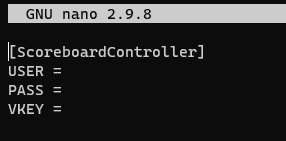
User: cabanaboy
Pass: ************
VKey: randomstringbytogo
neeed to write from here:
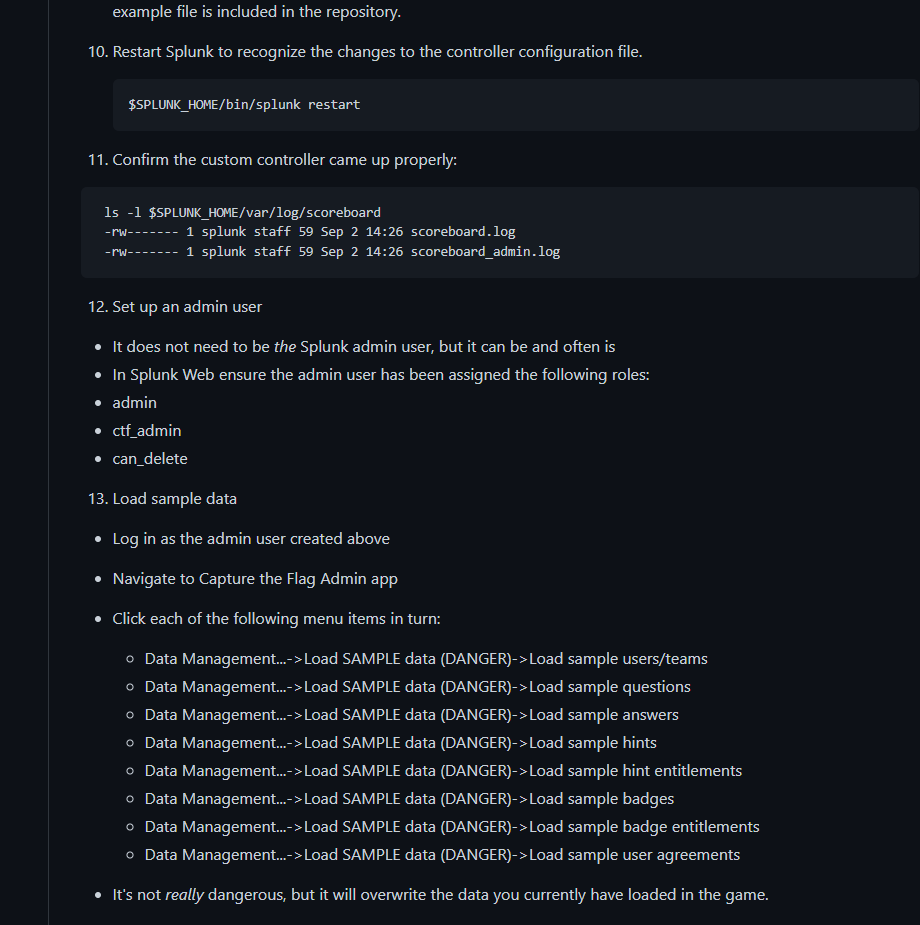
https://run-as-root.com/2021/06/08/splunk-botsv3-install-and-configuration/
No Comments